Switching from Motion to Akiflow
A practical guide to recreating your Motion workflows in Akiflow
If you’re coming from Motion, you’re already familiar with AI-powered task management, auto-scheduling, and calendar-based planning. Akiflow shares many of the same principles but approaches them differently. This guide will help you understand how to translate your Motion workflows into Akiflow so you can get up and running quickly.
Projects and Task Organization
In Motion, projects are organized with workspaces, tasks, and auto-generated workflows. In Akiflow, you have a flexible hierarchy of Folders, Projects, Sections, and Tags that gives you full control over how you organize your work.
Motion Workspaces → Akiflow Folders. Use Folders to group related areas (e.g., Work, Personal, Side Projects).
Motion Projects → Akiflow Projects. Create Projects within Folders for specific initiatives. You can track progress, set priorities, and organize tasks visually.
Motion Task Statuses → Akiflow Sections. Break your Projects into phases or categories using Sections (e.g., To Do, In Progress, Review, Done).
Motion Labels → Akiflow Tags. Tags work across all projects, so you can filter and find tasks
Deadlines and Scheduling
One of Motion core features is auto-scheduling tasks based on deadlines and priorities. In Akiflow, you take a more intentional approach using Time Blocking.
Motion Auto-Scheduling → Akiflow Time Blocking. Instead of letting AI decide when you work on tasks, Akiflow lets you drag tasks directly onto your calendar. This gives you full control over your schedule while keeping you focused on what matters.
Motion Deadlines → Akiflow Due Dates + Priority Levels. Set due dates on tasks and use priority levels (Urgent, High, Medium, Low) to make sure critical work gets done first.
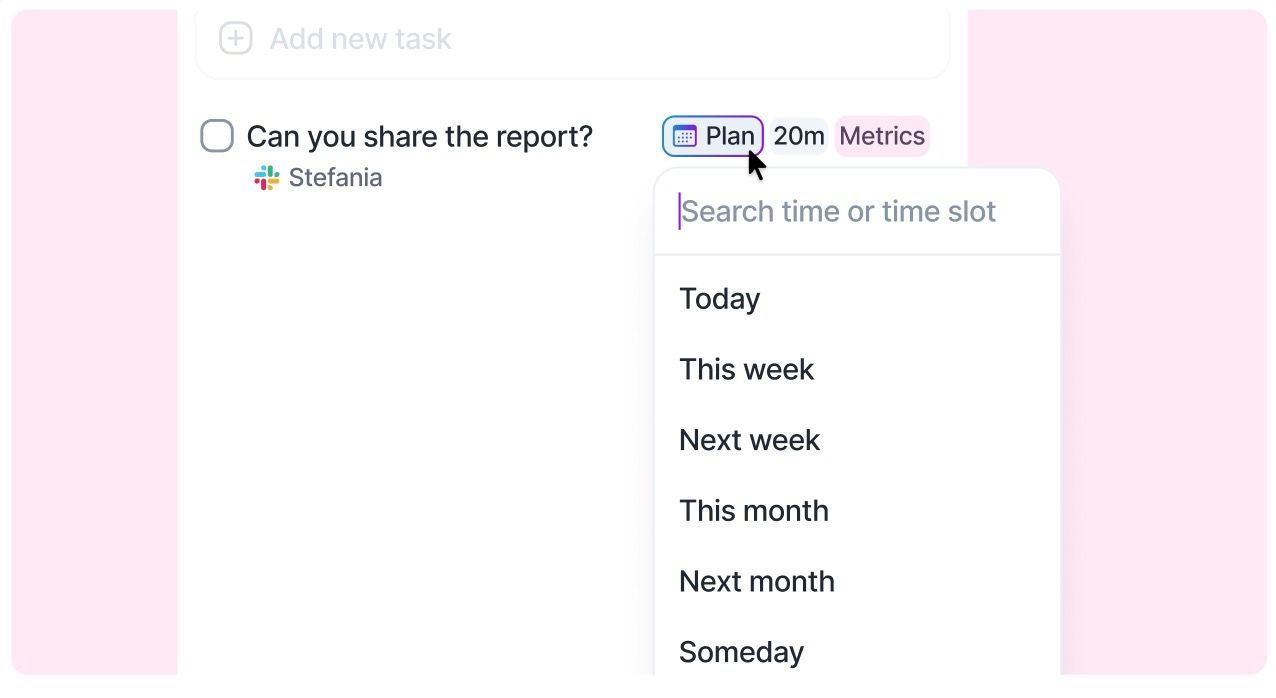
Motion Schedule Protection → Akiflow Time Slots. Use Time Slots to reserve blocks of time for deep work, meetings, or specific projects. Time Slots act as protected time on your calendar that you can plan tasks into.
AI: From Motion's Auto-Planner to Aki
Motion is known for its AI-powered auto-scheduling. Akiflow takes a different approach with Aki, an AI assistant that helps you work smarter without taking control away from you.
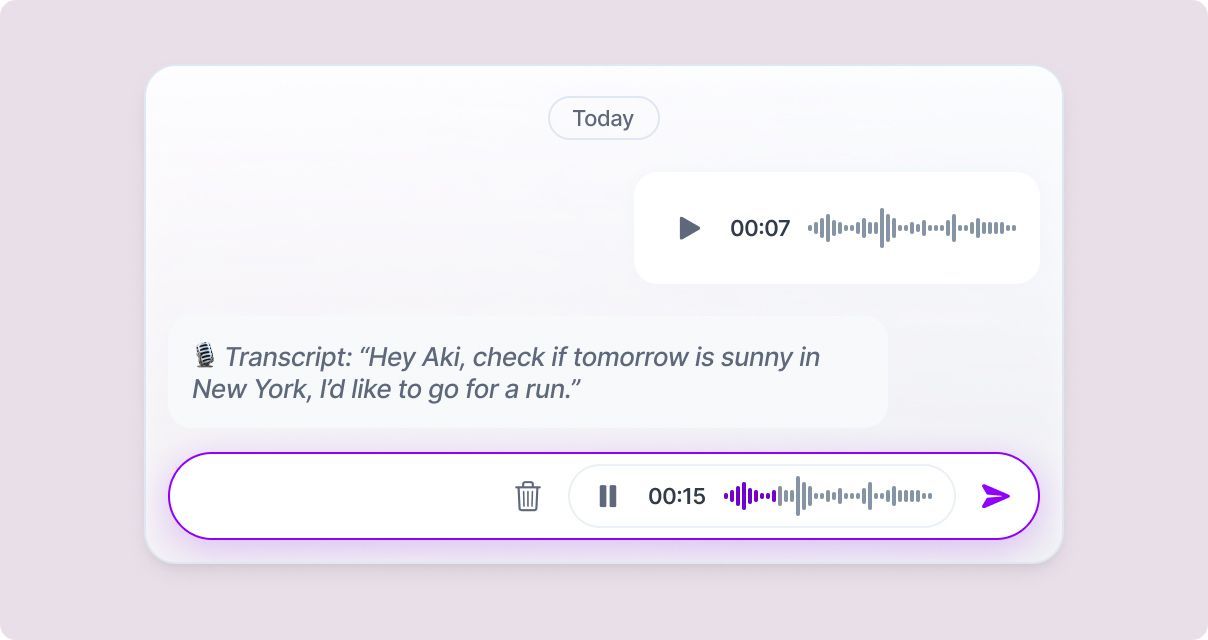
Motion AI Auto-Planner = Aki. Unlike Motion’s automatic scheduling, Aki works on demand, you ask, and Aki acts. Aki can create and modify tasks, update your calendar, suggest priorities, summarize your day, and help you plan through natural conversation. You’re always in control of when and how changes happen.
Aki can help you with: Creating tasks from natural language, prioritizing your to-do list, getting a quick summary of your upcoming schedule, and answering questions about your productivity patterns.
The key difference: Motion decides and acts automatically for you, while Aki acts only when you ask it to. Both can make real changes to your schedule and tasks, but with Aki, nothing happens without your request, giving you full visibility and control.
Calendar and Integrations
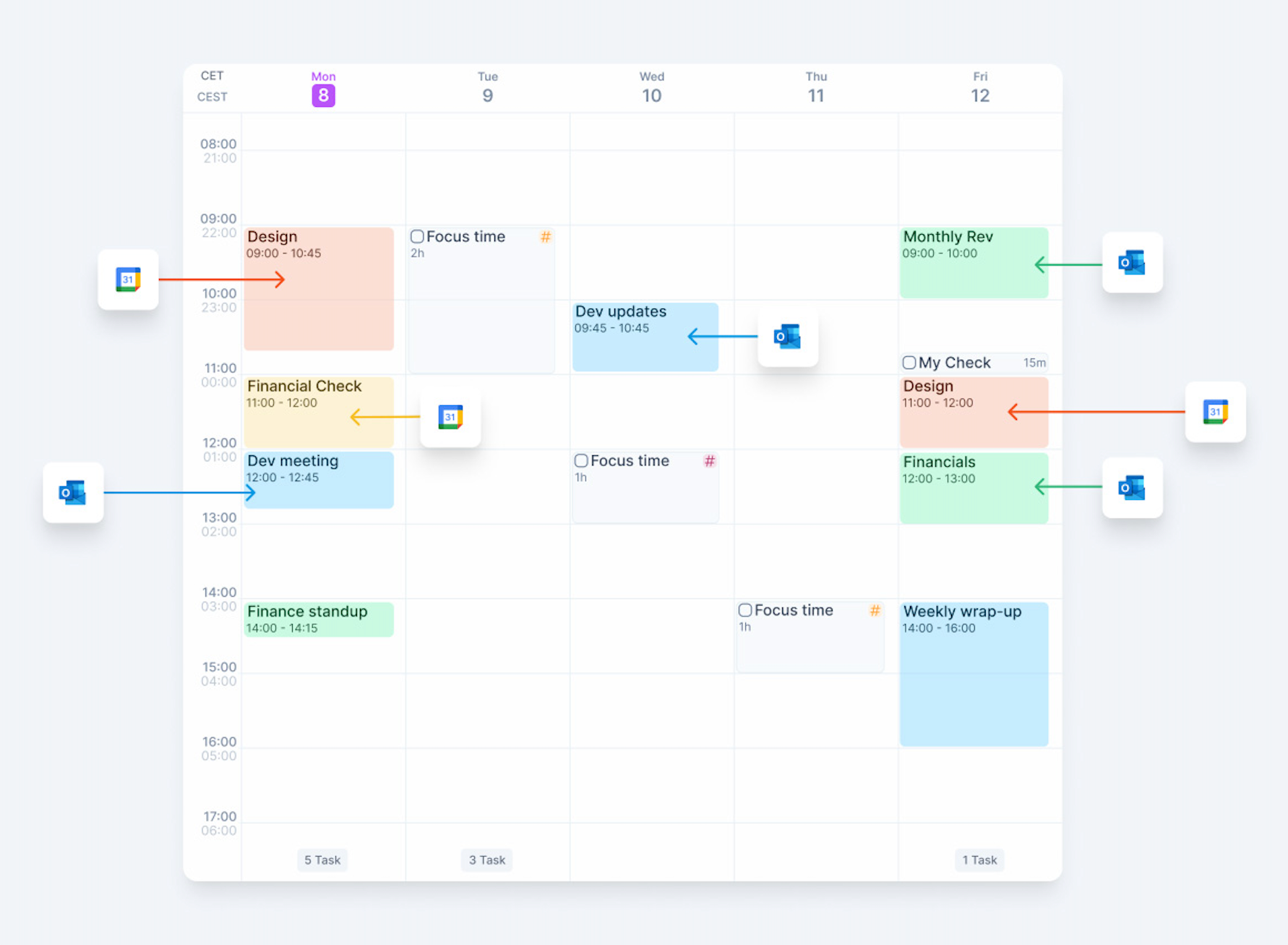
If you relied on Motion's calendar integration, you will feel right at home in Akiflow. Akiflow connects with Google Calendar, Outlook Calendar, and iCloud Calendar, bringing events from your connected calendars into one view.
Motion Calendar View → Akiflow Unified Calendar. See all your calendars in one place. Akiflow supports multiple calendar accounts simultaneously, so you can manage work and personal schedules side by side.
Motion Integrations → Akiflow Command Bar + Integrations. Akiflow integrates with tools like Slack, Gmail, Notion, Todoist, Asana, Linear, Jira, ClickUp, and more. Use the Command Bar (Ctrl/Cmd + E) to quickly capture tasks from anywhere.
Daily Rituals and Routines
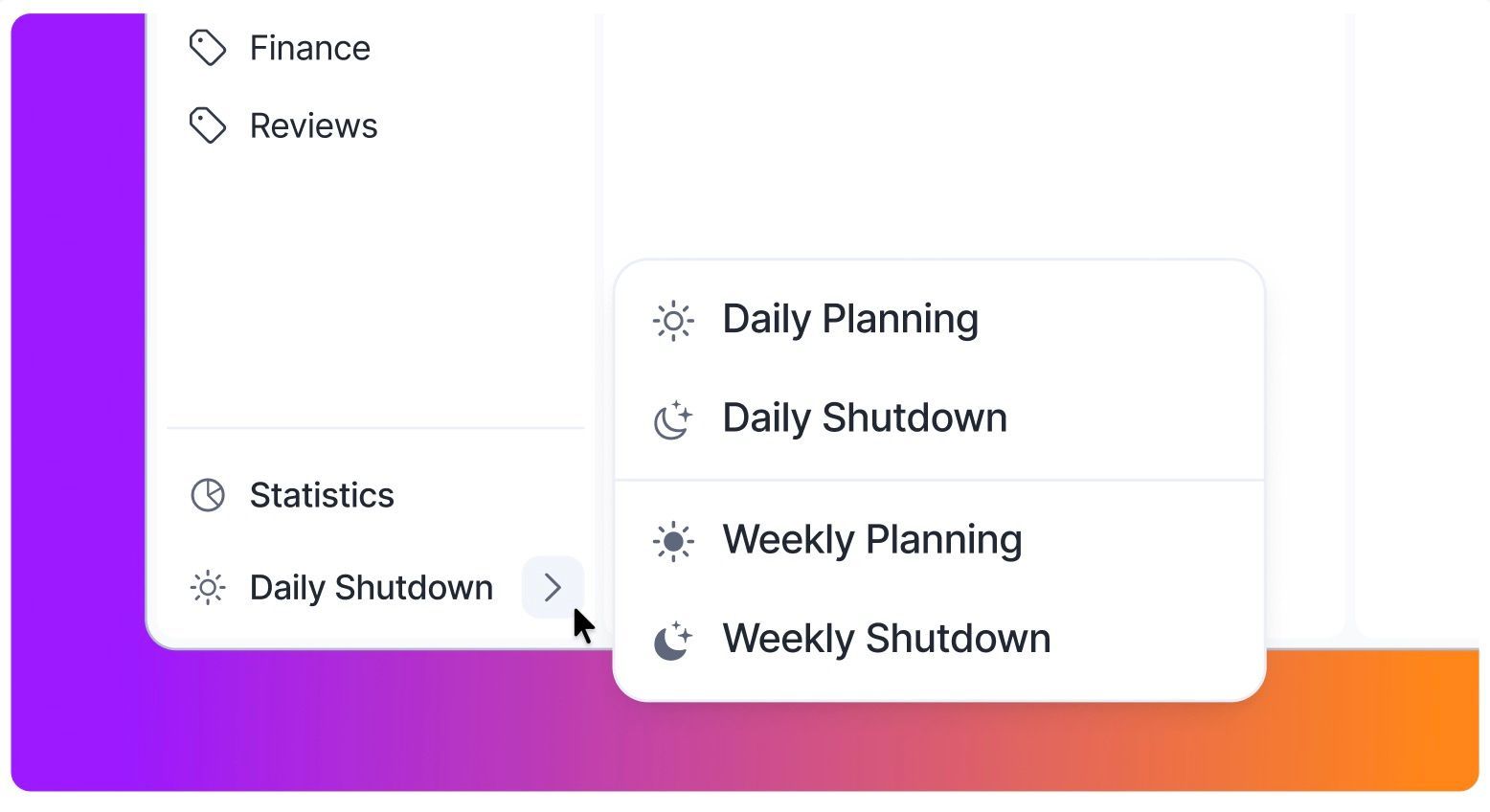
Motion does not have a built-in daily planning ritual. Akiflow does, and it is one of the features users love most.
Morning Planning. Each day, open Akiflow and review your Inbox (unplanned tasks). Drag them onto your calendar to commit to when you will work on them. This simple ritual takes 2-3 minutes and sets you up for a focused, intentional day.
End-of-Day Review. At the end of the day, any tasks you did not complete stay in your list. You can reschedule them to tomorrow or another day. Akiflow makes it easy to keep your commitments realistic.
Inbox. Akiflow pulls in notifications from your integrated tools (Slack, Gmail, etc.) into a single Inbox. Process them quickly: plan for today, tomorrow or next week/month and assign projects/tags to them.
Best Practices for Motion Switchers
1. Embrace manual planning. The biggest shift from Motion is going from auto-scheduling to intentional time blocking. Trust the process, most users find they are more productive when they consciously decide when to work on each task.
2. Use the Command Bar. Press Ctrl/Cmd + E from anywhere in Akiflow to quickly create tasks, search, or navigate. It is the fastest way to capture ideas without breaking your flow.
3. Set up your integrations early. Connect your calendars, email, and project management tools right away. The more sources Akiflow pulls from, the more powerful your unified view becomes.
4. Try Aki. Ask Aki to help you prioritize your day or create tasks from natural language. It is a great complement to your manual planning workflow.
5. Build the daily ritual. Spend 2-3 minutes each morning planning your day in Akiflow. This single habit replaces the need for an auto-scheduler and gives you more control.
Need help?
Reach out to our team at support@akiflow.com. We're happy to help!
Join our community to ask questions, share your workflow tips, and connect with other Akiflow users who can help you get even more out of Akiflow.
Was this helpful?
Still need help? Ask the team